Primer Free
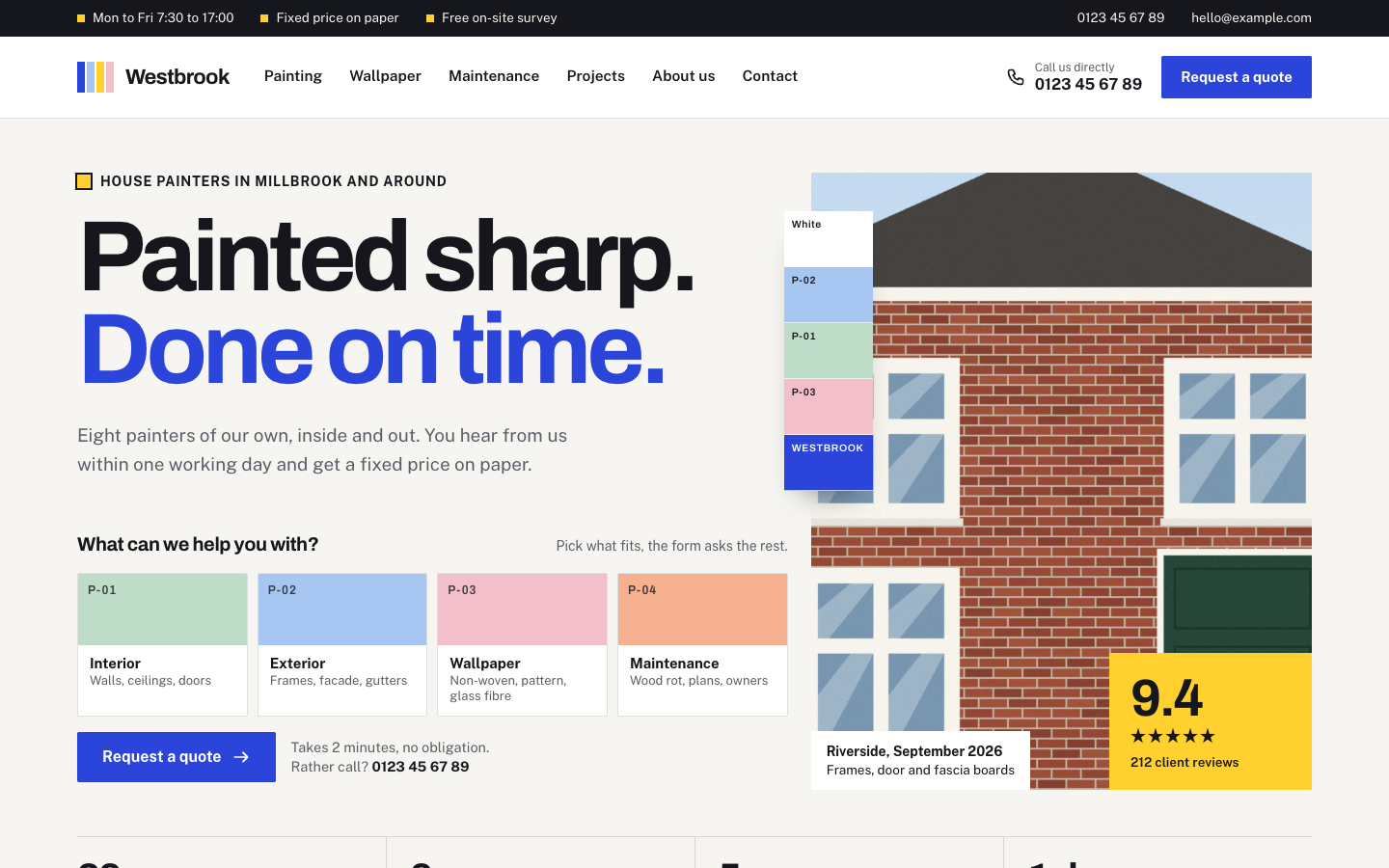
Primer is a light, graphic theme for house painters that works like a paint colour card. Visitors pick their kind of work from colour swatches, compare before and after photos of your projects and send a quote request in three short steps.
About this theme
Primer is made for painting and decorating companies, from one painter with a van to a team of fifteen, that do interior and exterior painting, wallpapering and maintenance. It looks orderly and confident: paper white, ink black, ultramarine buttons and signal yellow, big grotesque headlines, almost square corners and a thick numbered rule that opens every section, like a Swiss poster.
The idea behind it is the paint colour card. Interior, exterior, wallpaper and maintenance each get their own swatch with a code, and those swatches return everywhere: in the hero, on the service cards, as project tags and filters, on review tags and as the choices in the quote form. Visitors learn one visual language that leads straight to a quote.
The home page opens with your headline, a row of four swatches (pick one or more, press the button and the quote page opens with those already ticked), a photo with a colour fan, your review score and four proof numbers. Below come four colour card services, your latest projects with filter chips and a draggable before and after slider, an about section with team portraits and quality marks, an ink reviews block, your service area with places, a postcode check and a map, and a blue quote band with a short form. You choose the order, and every section can be hidden.
The quote page asks what needs painting, how big, where and when, and how to reach the visitor, in three numbered steps. Requests are sent to you and saved as a lead. Your projects come from the free Portfolio app: an archive with filters per kind of work, and a project page with a facts row, a full width before and after slider, the story, a client quote, a gallery and a button to request the same kind of job.
The header shows your phone number and a Request a quote button, and on phones a bar with Call and Request a quote stays at the bottom of the screen. Every colour, including the four swatch colours, the corner radius, the page width and the section spacing are settings, so Primer follows your brand.
Key features
- Colour card quote starter Visitors tick their kind of work on four paint swatches in the hero, and the quote page opens with those choices already made.
- Before and after slider Drag the line to compare before and after photos on the home page and on every project page, with touch and keyboard support.
- Quote form in three steps What, how big, where and when, then contact details. Requests reach you by email and are saved as a lead.
- Portfolio with filters Projects from the free Portfolio app get colour tags, filter chips per kind of work, facts, a story, a client quote and a gallery.
- Service area and postcode check List the places you work in with distances, add a map with radius rings and let visitors check their postcode.
- Swiss grid, your colours Numbered section rules and square corners keep it crisp, and every colour, including the four swatches, is a setting.
Fully in your own brand
The colours in the examples are only a starting point. In the editor you set your own colours, fonts and logo, and they carry through to every page of the theme.
How to set it up
Primer works with the data you already keep in SitePack plus the free Portfolio app, which is installed with the theme. These steps get the home page, the quote page and your projects ready.
- Assign the home template Open the home page, choose the Home (Primer) template and fill in the hero, the proof numbers, the services and the about section with your team.
- Create the quote page Add a page with the Quote request (Primer) template, then add a menu item to it as the last item and set it to display as a button.
- Add your projects In the Portfolio app, add a few finished jobs with a category, place, date, cover photo and, where you have them, before and after photos.
- Add your location and reviews Add your location with phone number for the header and the call buttons, and connect your reviews so the score shows.
- Set your service area Fill in the places you work in with distances, the postcode prefixes you serve and a map image for the service area section.
Frequently asked questions
Do I need to install the Portfolio app myself?
No. The free Portfolio app is installed automatically when you activate Primer. Add your projects there with a cover photo, and optionally a before and after photo, a gallery, a story and a client quote.
How do the swatch colours work for my projects?
Give each project a category such as Interior, Exterior, Wallpaper or Maintenance. Primer matches it to the right swatch colour for the tag and the filter chip. Other categories get a colour from the same card.
Where do quote requests go?
Assign the Quote request (Primer) template to a page and link to it from a menu item shown as a button. Requests from that page and from the short form on the home page are emailed to you and saved as a lead.
When does the before and after slider appear?
When a project has both a before photo and an after photo. With only one photo, Primer shows the cover photo instead, and project cards with both photos get a before and after badge.
Can I sell products with Primer?
No. Primer is a website theme without a web shop, made to win quote requests and show your work.
Which fonts does Primer use?
You pick the fonts in your design settings. Primer is designed for Archivo headings with Public Sans body text.
-
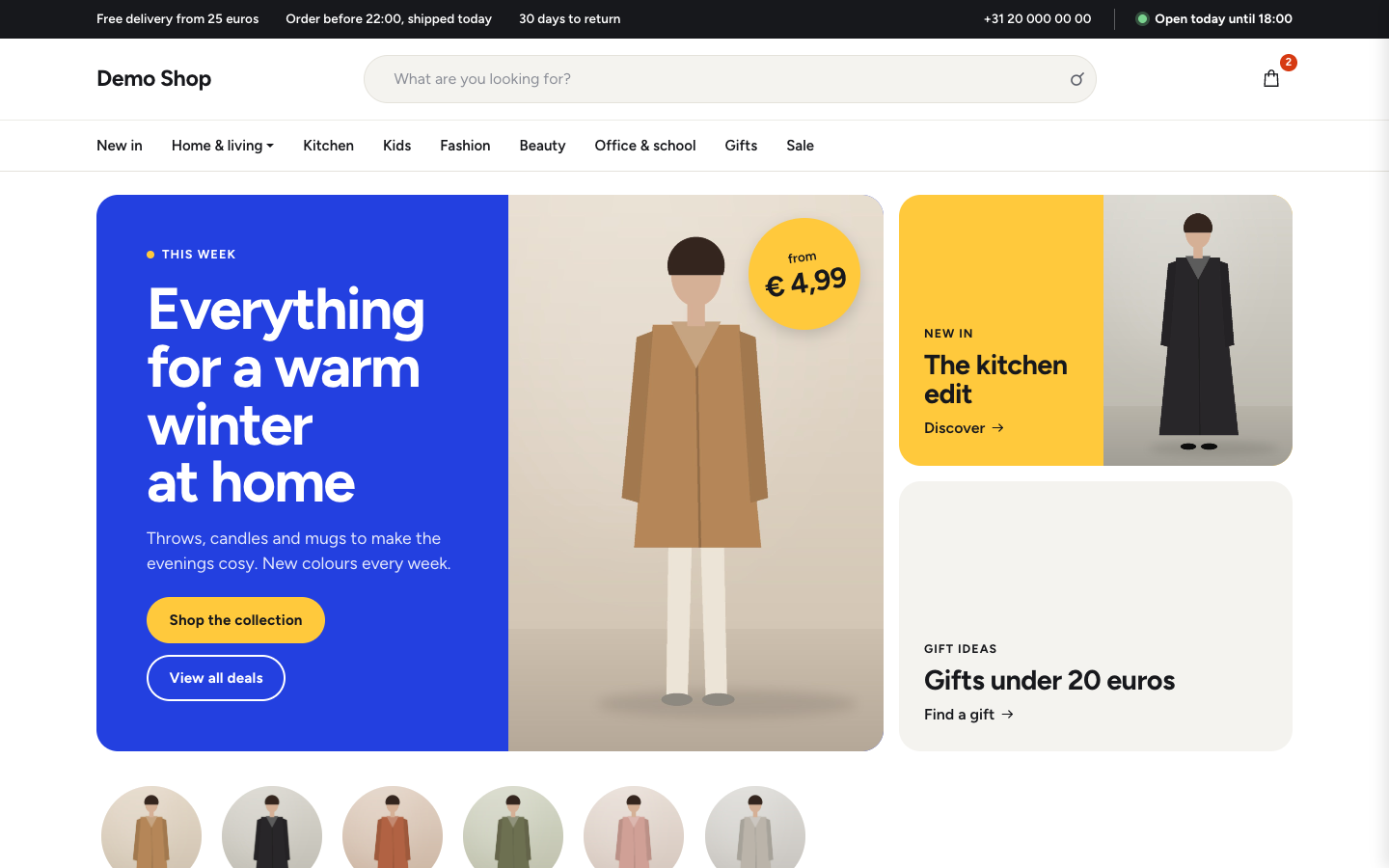 Aisle
New
Free
Bright department store theme for web shops with a broad range
-
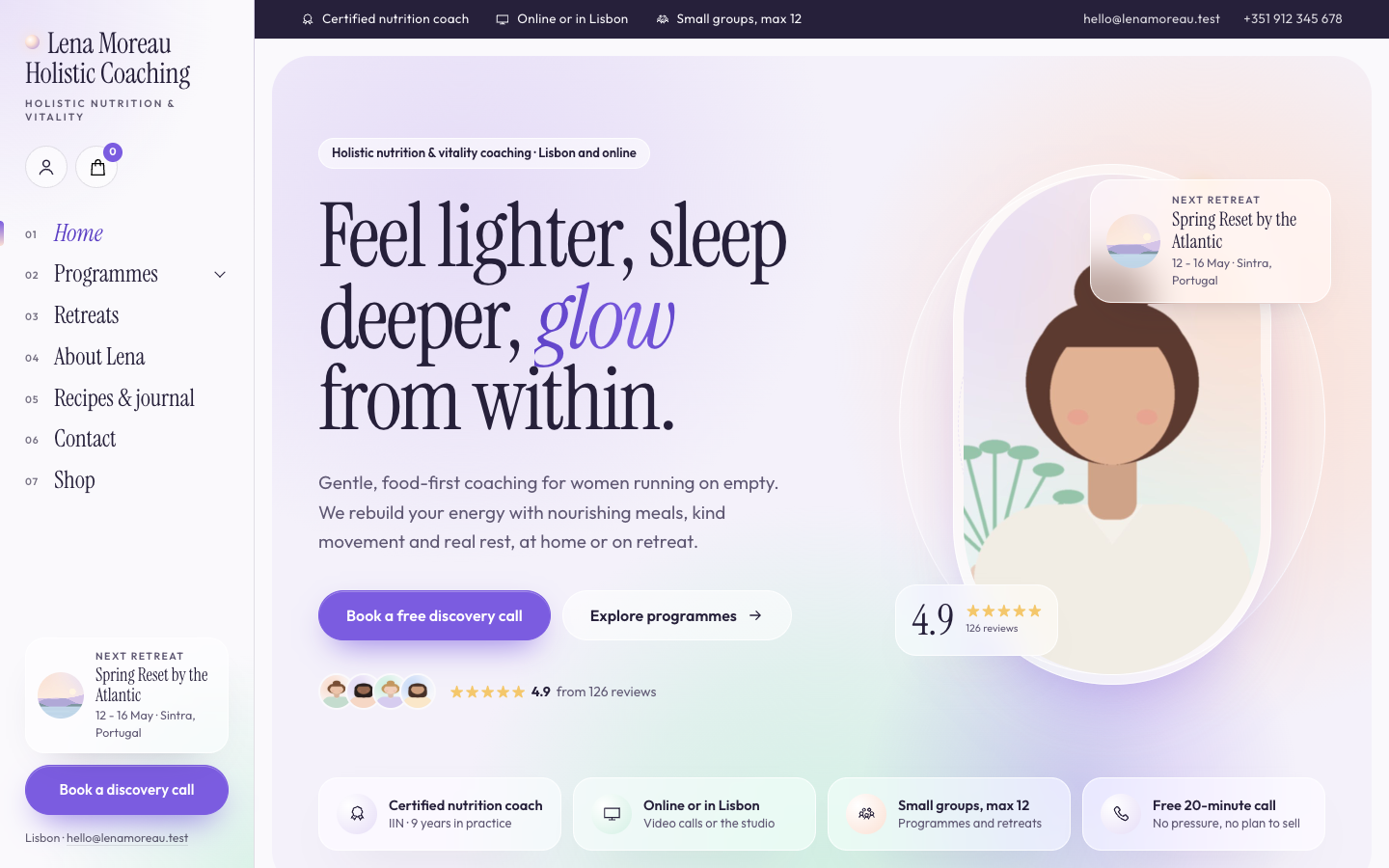 Aurora
New
Free
A luminous, dreamy theme for holistic and vitality coaches who host retreats
-
 Bloom
New
Free
A warm, pastel website theme for life and mindset coaches
-
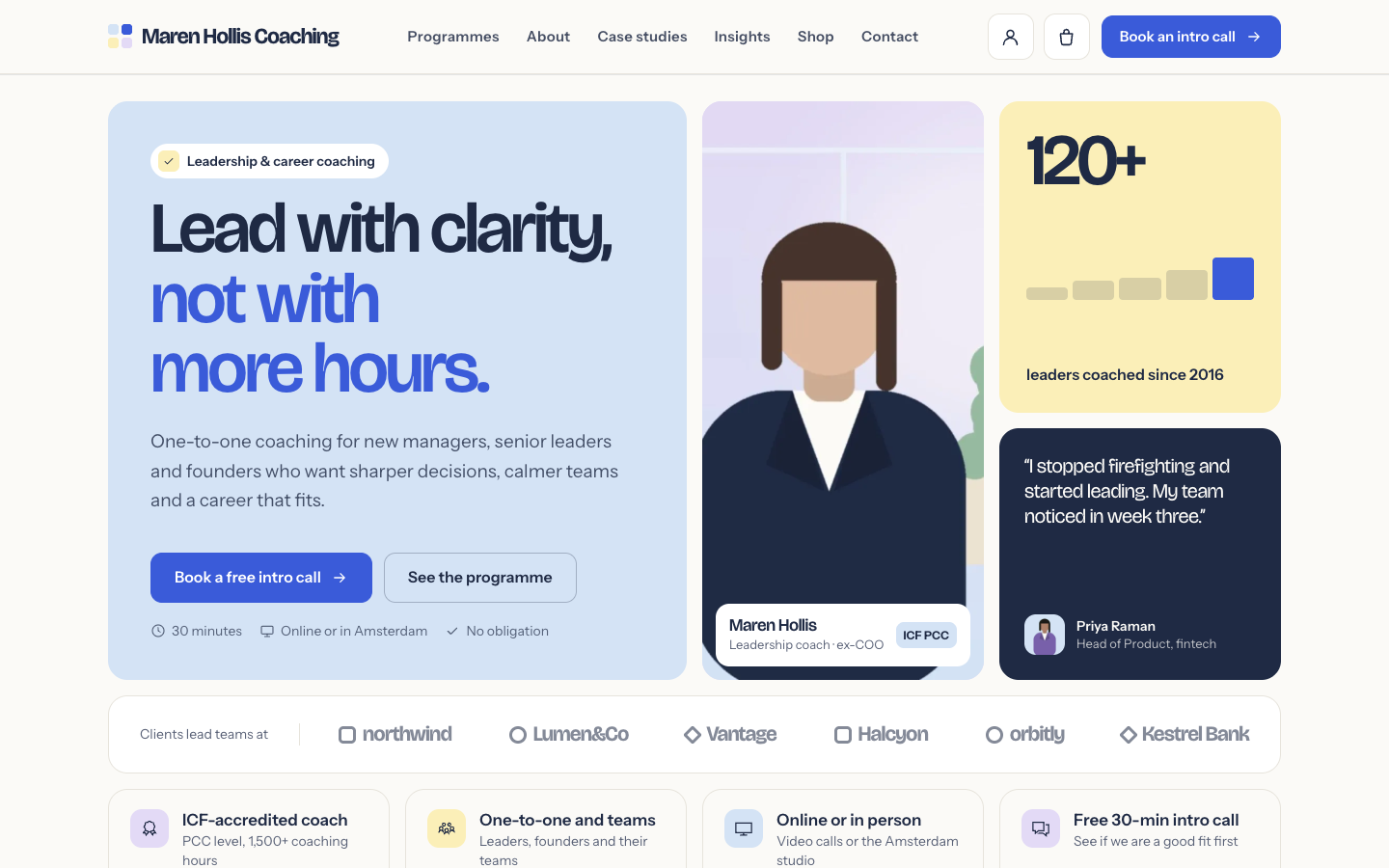 Clarity
New
Free
A structured bento theme for career, leadership and business coaches
Pick a theme and launch your site today
Try SitePack free, choose a design and switch whenever you like.