Tint Free
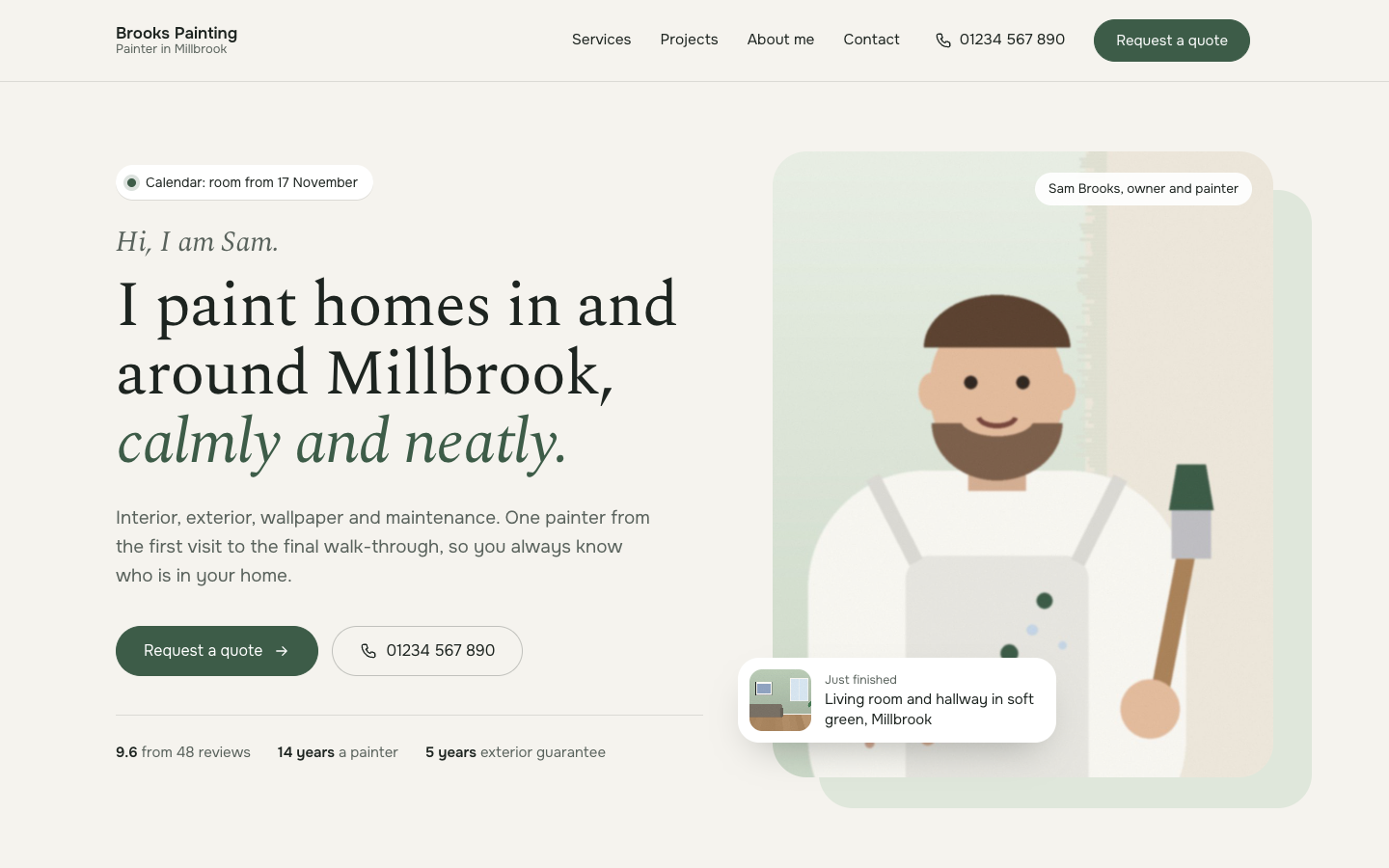
Tint is a soft, first-person theme for the one-person painting business. It shows your face, your calendar and your before and after photos, and leads every visitor to one thing: a quote request that lands with you.
About this theme
Tint is made for painters and decorators who run the business on their own, sometimes with one helper. Instead of pretending to be a company, the site speaks in the first person and shows the same face from the first visit to the final walk-through. It feels calm and airy: a warm off-white base, one soft tint of your choice (sage by default), one deeper partner colour for buttons and links, big photos with rounded corners and a light serif with italic accent words.
The home page opens with an italic greeting, a headline about what you paint and where, your portrait on an offset tint card and a floating "just finished" card with your newest project. A small agenda pill with a green dot tells visitors when you have room, and a trust line shows your review score and two or three facts of your own. Below come four service cards, your latest projects with a Before and After pill on every photo, an about band with facts, certificate pills and a step line that repeats your avatar at every step, client quotes, your work area with a postcode check, and a short quote form. You choose the order, and every section can be hidden.
The quote page asks three short questions (what, where and when, how do I reach you) and sits next to a tint card with your photo, three steps and a short quote. Requests arrive as a mail and as a lead in your admin, and the send button can carry your first name. Project pages come from the free Portfolio app: an overview with filter pills per type of work, and detail pages with a facts card, the before and after pair, your story, the client quote, a gallery and a button that opens the quote form with that type of work ticked.
The header keeps your logo, the menu, your phone number and a quote button in one calm row. On phones a bar with Call and the quote button stays at the bottom of the screen. Content pages, the footer and the cookie bar follow the same soft look. Every colour, the corner radius, the button shape, the page width and the section spacing are settings, so Tint fits your own brand.
Key features
- Speaks as you, not as a company First-person copy, your portrait and your name on the hero, the about band and the quote page, so visitors know who will be in their home.
- Your calendar in the hero A small agenda pill with a green dot tells visitors when you have room, before they even ask.
- Before and After on every photo Project cards and pages get a tap-friendly Before and After pill; on desktop the project page shows both photos side by side.
- Same face at every step The about band shows visit, quote, the work and handover as one line with your avatar repeated at each step.
- Short three-step quote form What, where and when, how do I reach you: requests arrive as a mail and as a lead, and the send button can carry your first name.
- One soft tint, your choice Pick one light pastel and one deeper partner colour; radius, button shape, page width and spacing are settings too.
Fully in your own brand
The colours in the examples are only a starting point. In the editor you set your own colours, fonts and logo, and they carry through to every page of the theme.
How to set it up
Tint works with the data you already keep in SitePack and the Portfolio app that comes with it. These steps make the home page complete and point every button to your quote page.
- Assign the home template Open the home page, choose the Home (Tint) template, add your name, greeting, headline and portrait, and save.
- Create the quote page Add a page, choose the Quote request (Tint) template, add your photo and the line under your name, and set your first name and agenda text in the theme settings.
- Add your projects In the Portfolio app, add three or more projects with a cover photo and, where you have them, a before and after photo, the place and the type of work.
- Fill in the about band and work area Write a short story about yourself, add a photo at work, three facts and your certificates, then list the places you work in and the postcodes you serve.
- Add the quote button Create a menu item to your quote page as the last item and set it to display as a button. Add your phone number to your first location for the call buttons.
Frequently asked questions
Where do the projects come from?
From the free Portfolio app. It is installed automatically when you activate Tint, so you only add your projects: a title, a cover photo, and optionally a before and after photo, a story, a client quote and a gallery.
How does the Before and After pill work?
When a project has both a before and an after photo, every card and project page shows a small pill that switches between the two. With only a cover photo the pill stays hidden and the card still looks complete.
Where do quote requests go?
Requests from the quote page and the short form on the home page are sent to you by mail and saved as a lead in your SitePack admin, with the type of work, size, postcode, timing and contact details.
How do I keep the agenda pill up to date?
The pill text is a theme setting, for example "Calendar: room from 17 November". Change it whenever your planning shifts, or leave it empty to hide the pill.
I work with a helper. Does Tint still fit?
Yes. The default copy speaks in the first person, but every title and text on the home and quote pages is a field you can rewrite, and every section can be reordered or hidden.
Which fonts does Tint use?
You pick the fonts in your design settings. Tint is designed for Spectral headings with Onest body text.
-
 Clarity
New
Free
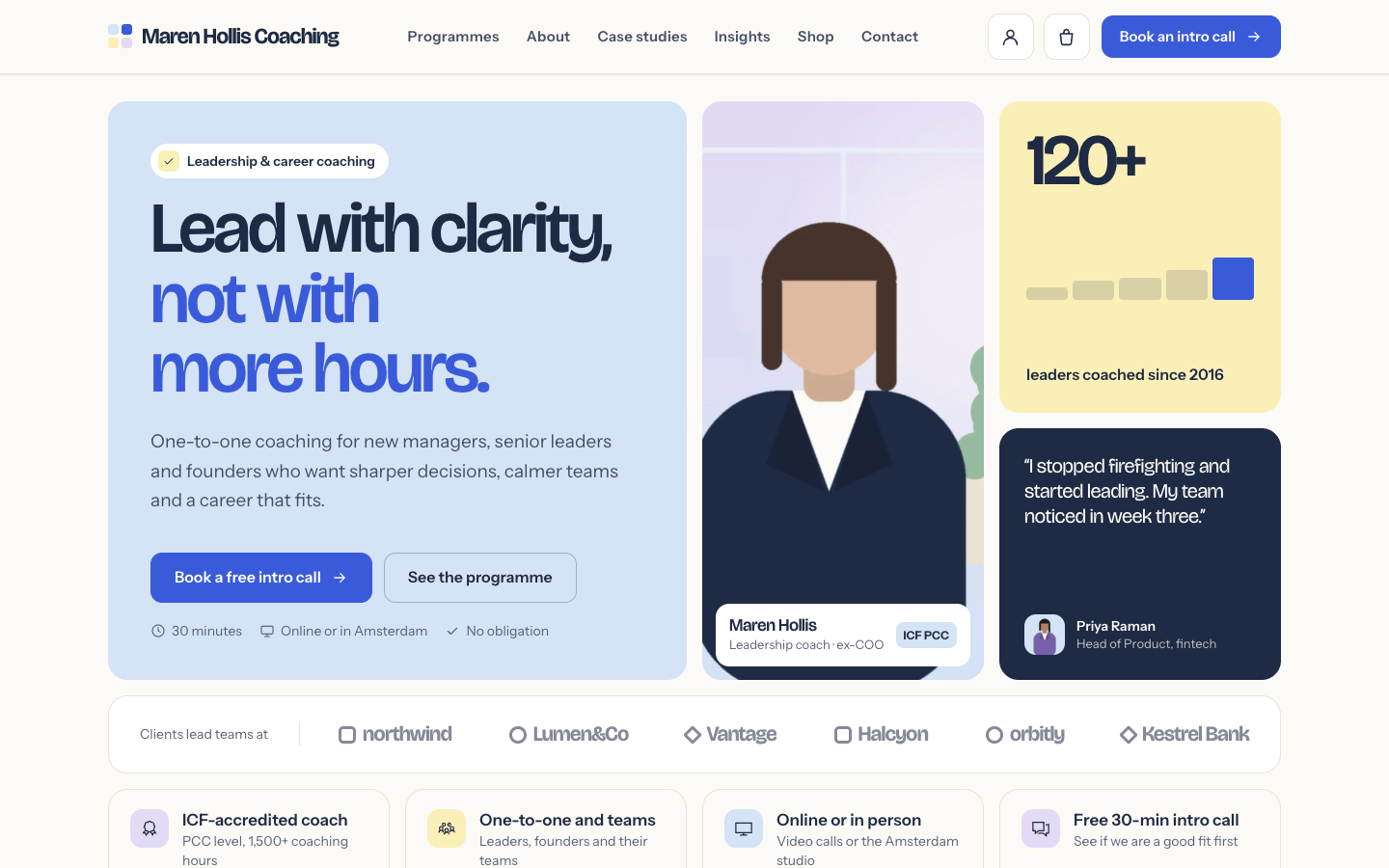
A structured bento theme for career, leadership and business coaches
Clarity
New
Free
A structured bento theme for career, leadership and business coaches
-
 Coat
New
Free
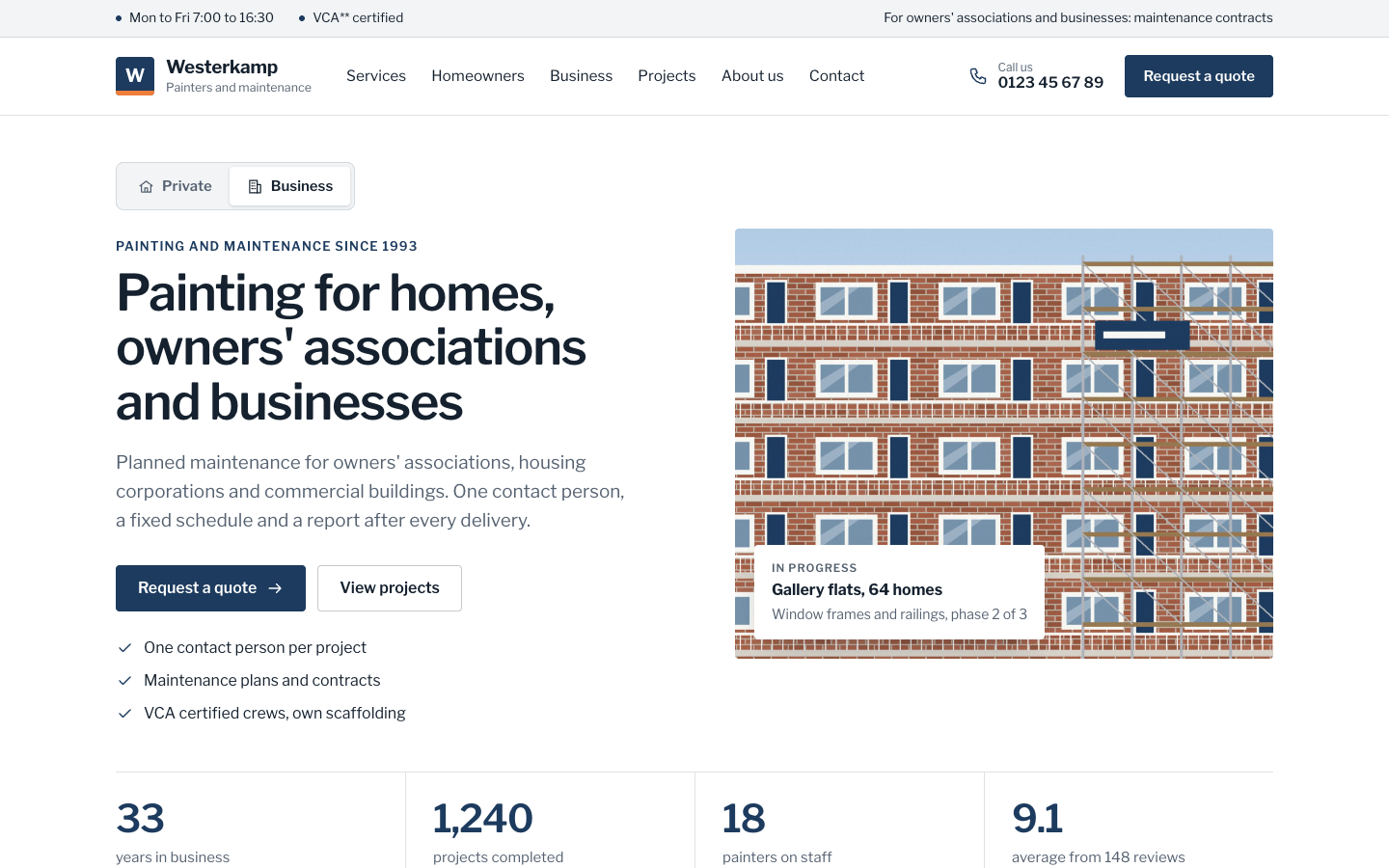
A businesslike theme for painting companies serving homes and organisations
Coat
New
Free
A businesslike theme for painting companies serving homes and organisations
-
 Sash
New
Free
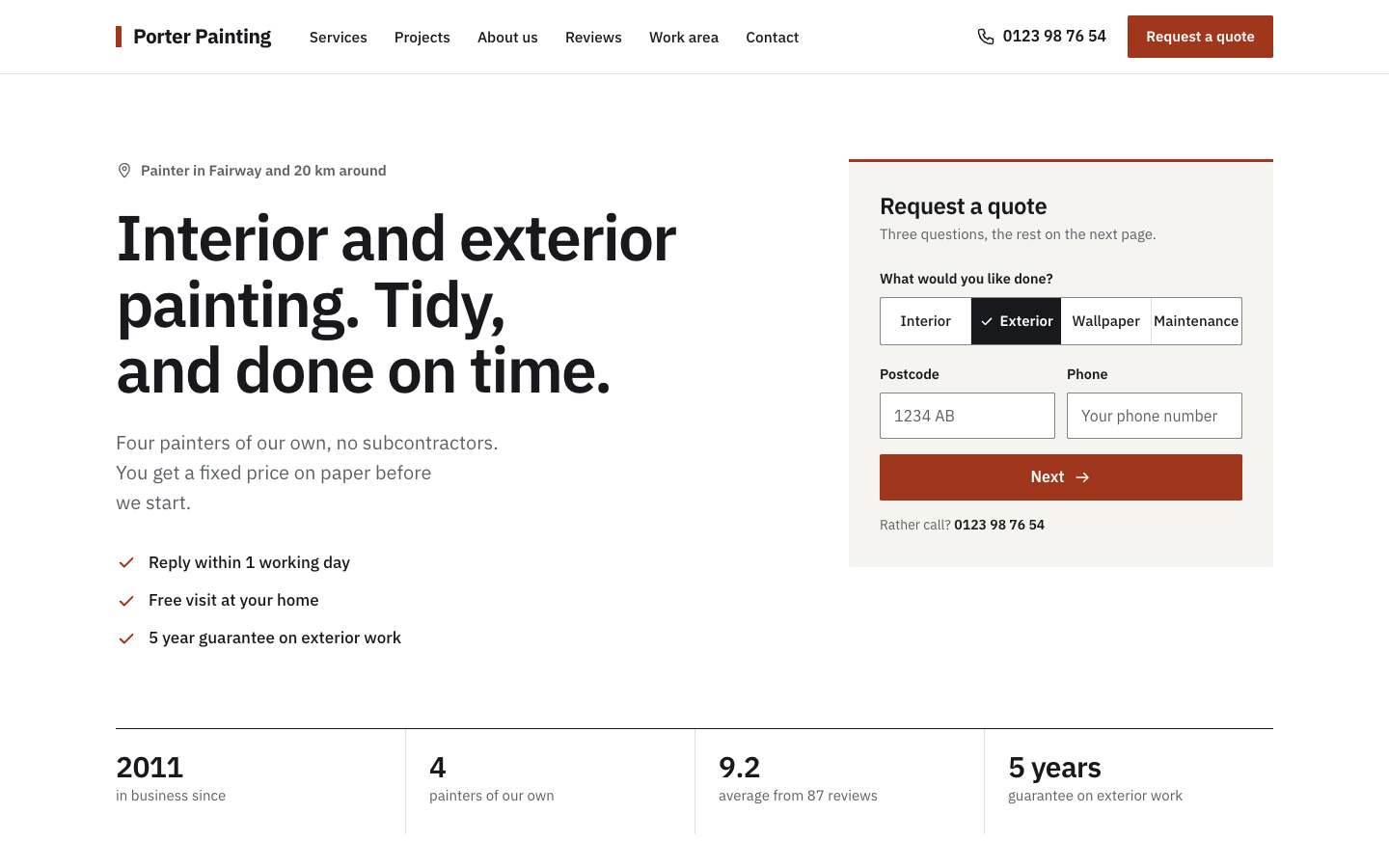
A plain, businesslike website theme for small painting companies
Sash
New
Free
A plain, businesslike website theme for small painting companies
-
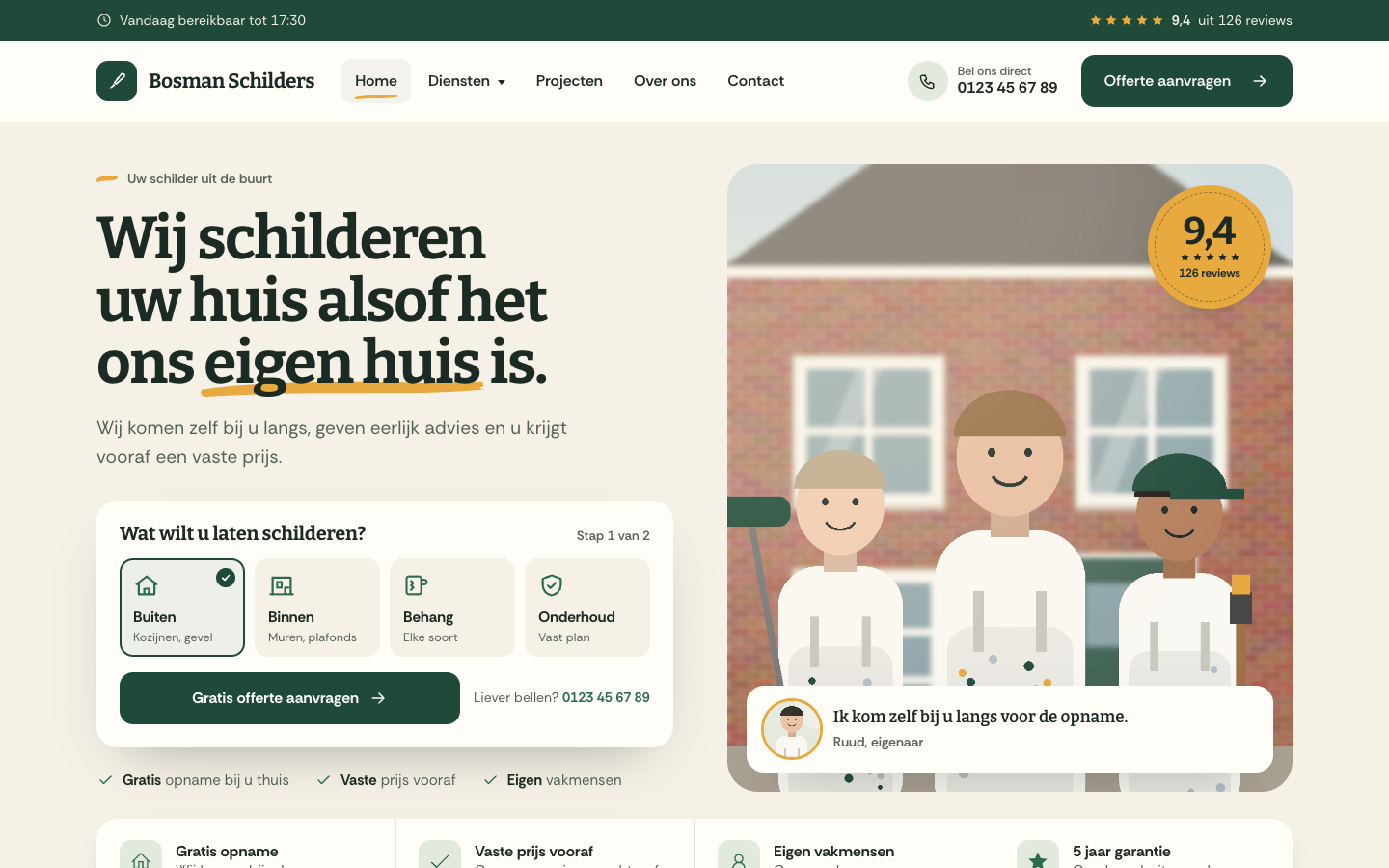 Trim
New
Free
A warm, people-first website theme for local house painters
Trim
New
Free
A warm, people-first website theme for local house painters
Pick a theme and launch your site today
Try SitePack free, choose a design and switch whenever you like.